Inside Git: How It Works and the Role of the .git Folder
Understanding the Inner Workings of Git
A web development learner and tech enthusiast, documenting my journey into modern web development. I share what I learn, write practical coding tips, and publish beginner-friendly blogs on programming concepts and tools.
Most developers use Git every day, but very few truly understand what Git is doing internally.
Because of this, Git often feels like a set of magical commands that we memorise instead of understand.
In this article, we will open the black box of Git and build a clear mental model of how Git works internally.
We will cover:
How Git works internally
Understanding the
.gitGit objects: Blob, Tree, Commit
How Git tracks changes using hashes
How Git Works Internally
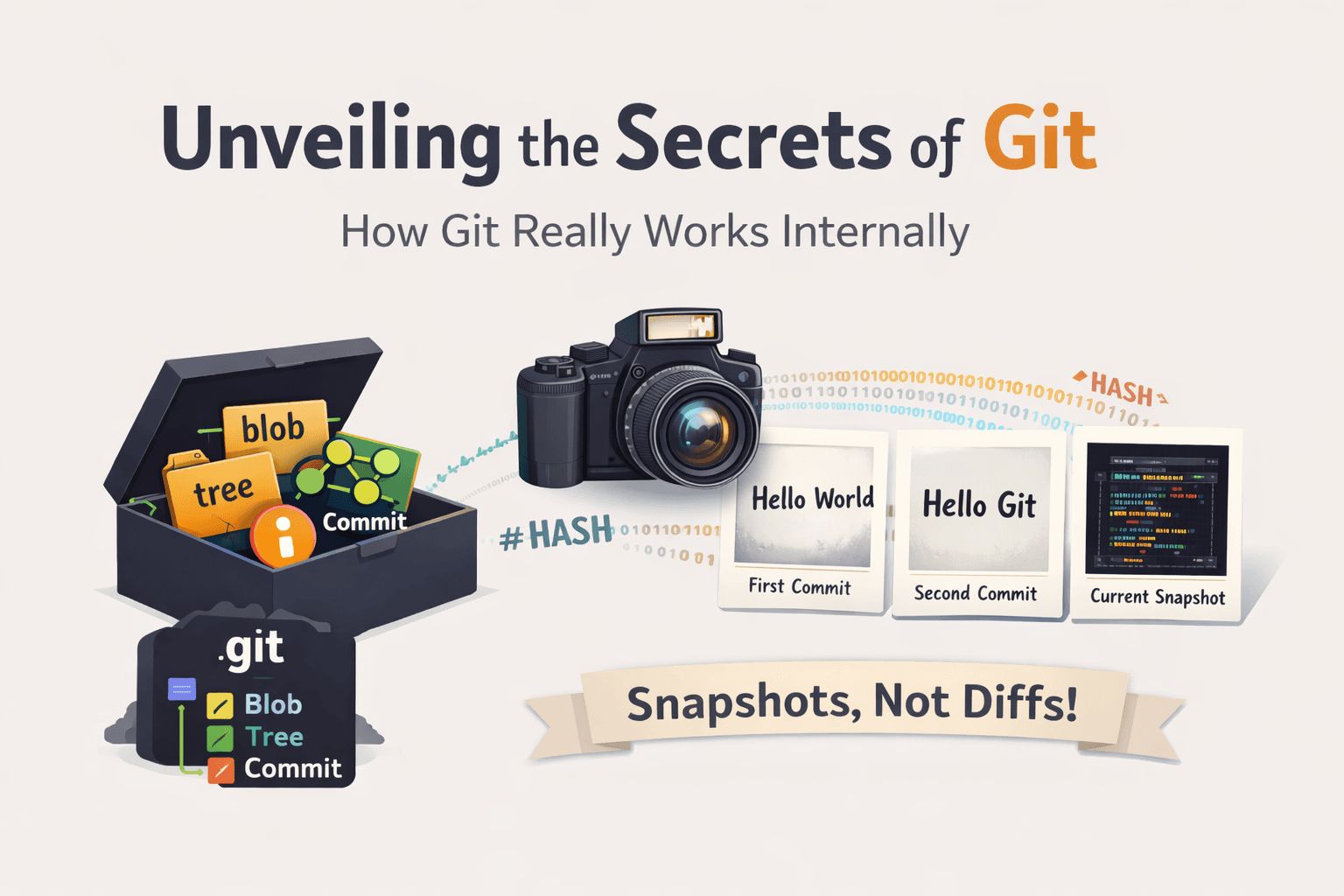
Most beginners thinks that Git Tracks my files, But Internally, Git Works differently. The core Idea is that Git saves Snapshots of your Project, not file changes.
Every time you make a commit, Git saves how your project looks at that moment.
Think of Git like a camera
Your Project = a scene
git commit = taking a photo
Each commit is a snapshot that is saved forever.
You can go back to any snapshot anytime.
What Git Actually Stores
Git stores content, not file names or editing steps.
Git does not:
Track line by line edits
Track how many times you saved a file
Git does:
Look at the final content
Save it as a snapshot
Example :
First version
hello.txtHello World
Commit → Git saves this snapshot.
Second version
hello.txtHello Git
Commit → Git saves a new snapshot.
The old snapshot still exists.
Why This Matters :
Because Git uses snapshots:
Old versions are never lost
Undoing mistakes is easy
Git is fast and reliable
Understanding the .git Folder
When you run this command:
git init
Git creates a hidden folder called .git.
This folder is the heart of Git.
What Is the .git Folder?
The .git folder stores everything Git needs to work.
It contains:
All commits
All history
All branches
All tags
All Git settings
Your project files are normal files.
Git data lives only inside .git.
Never edit or delete anything inside the .git folder manually.
If the .git folder is deleted:
Your project files remain
But Git history is gone forever
Think like this:
Project folder → your work
.gitfolder → Git’s brain
If the brain is gone, Git is gone.
What’s Inside .git
You don’t need to remember all files.
Just know what they are for.
objects/→ stores all data (files, folders, commits)refs/→ stores branches and tagsHEAD→ tells Git where you areindex→ staging areaconfig→ repository settings
Local Repository Structure Overview


Git Objects: Blob, Tree, Commit
Internally, Git stores everything using three basic building blocks called objects.
Git has only three important objects:
Blob
Tree
Commit
1. Blob - File Content
A Blob means:
“This is the content of a file”
Example:
hello.txt Hello World
Git saves the text Hello World as a blob.
Blob stores only content
Blob does not store file name
Blob does not store folder name
If two files have the same content, Git saves one blob only.
2. Tree - Folder Structure
A Tree means:
“Which files and folders exist here?”
A tree stores:
File names
Folder names
Links to blobs (files)
Links to other trees (folders)
Example:
project/
├── index.html
├── style.css
└── src/
    └── app.js
Git saves this structure using tree objects.
3. Commit - A Snapshot
A Commit means:
“Save the project exactly like this”
A commit stores:
One main tree (project snapshot)
A message
Author info
Link to previous commit
A commit is not a file, it is a snapshot pointer.
How Blob, Tree, and Commit Work Together
This is the most important Git idea.
Commit
  ↓
Tree
  ↓
Blob
Commit points to a tree
Tree points to blobs
Blobs store file content
Example
When you commit a project:
Git saves file content as blobs
Git saves folder structure as trees
Git creates a commit that points to the tree
That’s how Git builds history.
How Git Tracks Changes
Git does not track changes the way we think.
It does not say:
“Line 3 changed from this to that”
Instead, Git thinks like this:
“What does the project look like right now?”
The Main Idea
Git tracks changes by saving snapshots, not by editing old ones.
Every commit is a new snapshot.
Example
First version
notes.txt
I like coding
You commit this.
Git saves a snapshot:
notes.txt → "I like coding"
Second version
notes.txt
I like Git
You commit again.
Git saves another snapshot:
notes.txt → "I like Git"
The first snapshot is still there.
What About Files That Don’t Change?
If you have 10 files and only 1 file changes:
Git saves a new version only for the changed file
The other 9 files are reused
So Git is:
Fast
Memory efficient
How git add Fits In
git add means:
“Git, remember this file for the next snapshot”
It does not save history.
It only prepares files.
How git commit Fits In
git commit means:
“Create a snapshot now”
After commit:
Git saves the project state
Git links it to the previous snapshot
Why Git Works This Way
Because Git uses snapshots:
Old versions are never lost
You can go back safely
Branching is easy